Introduction
Android smartphones have become powerful, feature-rich companions, but battery life remains one of the most common pain points for users. Whether you use your phone for work, gaming, social media, or navigation, a fast-draining battery can disrupt your entire day. While manufacturers continue to improve battery capacity and software optimization, how you use your Android phone still plays the biggest role in battery performance.
This in-depth guide shares 15 must-know, practical tips to extend your Android battery life in 2025. These methods are easy to follow, require no technical expertise, and work on almost all Android devices including Samsung, Xiaomi, OnePlus, Realme, Vivo, Oppo, Pixel, and more.
Why Android Battery Drains Fast
Before fixing battery drain, it’s important to understand the root causes:
- High screen brightness and long screen-on time
- Background apps consuming resources
- Poor network signals (mobile data or Wi‑Fi)
- Location services running continuously
- Aging batteries and fast charging habits
By addressing these issues, you can increase daily battery life by 30–50% without sacrificing usability.
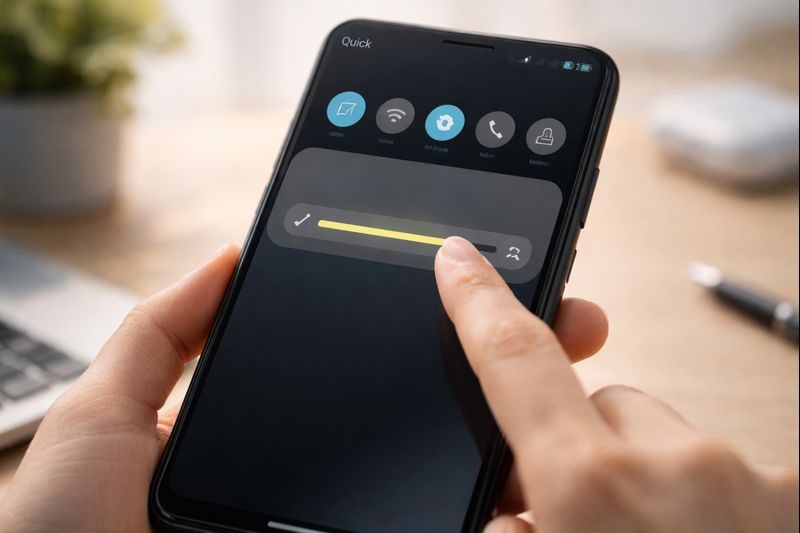
1. Reduce Screen Brightness and Use Adaptive Brightness
Your display consumes more power than any other component. Keeping brightness at maximum can drain your battery rapidly.
What to do:
- Enable Adaptive Brightness
- Manually reduce brightness indoors
- Avoid using your phone in direct sunlight for long periods
Pros: Saves significant battery
Cons: Screen may look slightly dim indoors
2. Shorten Screen Timeout Duration
If your phone screen stays on when not in use, the battery drains unnecessarily.
Recommended setting:
- Screen timeout: 30 seconds to 1 minute
Why it works:
Less screen-on time equals lower power consumption.
3. Enable Battery Saver Mode Strategically
Android’s built-in Battery Saver limits background activity, animations, and syncing.
Best use cases:
- When the battery falls below 30%
- While traveling
- During long workdays
Pro tip: Schedule Battery Saver to turn on automatically.
4. Identify and Remove Battery-Draining Apps
Some apps consume power even when not actively used.
Steps:
- Go to Settings → Battery → Usage
- Identify apps with high background usage
- Uninstall or restrict unnecessary apps
Common culprits:
- Social media apps
- Games
- Fitness and tracking apps
5. Limit Background App Activity
Android allows apps to run in the background unless restricted.
How to restrict:
- Settings → Apps → Select App → Battery → Restrict
Result:
Reduced background CPU and network usage.
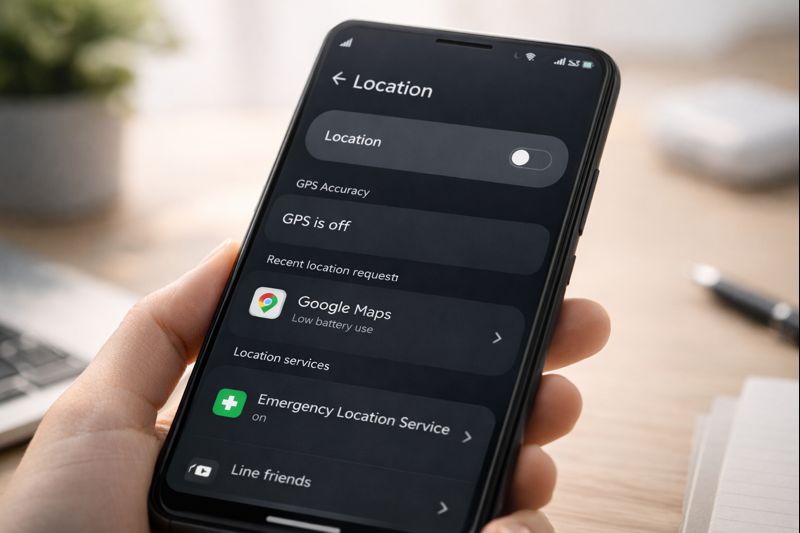
6. Turn Off Location Services When Not Needed
GPS is one of the biggest battery drainers.
Best practice:
- Use location only while using the app
- Turn off GPS when indoors
7. Use Dark Mode (Especially on AMOLED Displays)
Dark Mode reduces power usage significantly on AMOLED screens.
Battery savings:
- Up to 15–25% on supported devices
Where to enable:
- Settings → Display → Dark Mode
8. Disable Always-On Display (AOD)
Always-On Display looks stylish but continuously uses power.
Recommendation:
- Please turn it off or limit schedule hours
Pros: Battery savings
Cons: Lose glance information
9. Reduce Notifications and Vibration
Each notification lights up your screen and triggers vibration.
Action steps:
- Disable unnecessary notifications
- Turn off vibration for non-essential alerts
10. Keep Your Android System Updated
Software updates often include battery optimizations and bug fixes.
Tip:
- Always install stable system updates
- Avoid beta versions if battery life matters
11. Avoid Extreme Temperatures
Heat and cold damage lithium-ion batteries.
Ideal temperature:
- 15°C – 35°C
Avoid:
- Leaving the phone in car
- Gaming while charging
12. Optimize Charging Habits
Charging incorrectly shortens battery lifespan.
Best practices:
- Charge between 20%–80%
- Avoid overnight charging
- Use certified chargers
13. Turn Off 5G When Not Required
5G consumes more power than 4G in weak signal areas.
Solution:
- Switch to 4G when high speed is not needed
14. Use Lite Versions of Apps
Lite apps consume less battery and data.
Examples:
- Facebook Lite
- Messenger Lite
- YouTube Lite
15. Restart Your Phone Weekly
A simple restart clears background processes and memory leaks.
Recommended:
- Restart once every 5–7 days
Battery Saving Features Comparison Table
| Feature | Battery Impact | Recommended |
|---|---|---|
| Dark Mode | High | Yes |
| Battery Saver | High | Yes |
| 5G Always On | High Drain | No |
| Adaptive Brightness | Medium | Yes |
| Always-On Display | Medium Drain | Optional |
Pros and Cons of Battery Optimization
Pros
- Longer daily usage
- Slower battery degradation
- Less frequent charging
Cons
- Slight performance limitations
- Reduced background syncing
Android Battery Accessories Buying Guide
If software optimization isn’t enough, accessories can help.
Power Banks
- Capacity: 10,000mAh – 20,000mAh
- Fast charging support
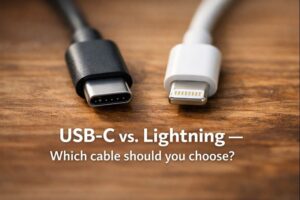
Charging Cables
- USB‑C PD certified
- Durable braided cables
Wireless Chargers
- Use only when convenient
- Slower but cable-free
Frequently Asked Questions (FAQs)
Does fast charging damage Android batteries?
Occasional fast charging is safe, but frequent use increases heat and long-term wear.
Is closing apps good for battery life?
Not always. Android manages apps efficiently; force-closing can sometimes increase usage.
How long should an Android battery last?
With proper care, it last
Final Thoughts
Extending your Android battery life doesn’t require expensive tools or complicated tweaks. By applying these 15 proven tips, you can enjoy longer screen time, better performance, and a healthier battery throughout 2025 and beyond.
If you found this guide helpful, explore more Android optimization tips and tech guides to get the most from your smartphone.